
Building A Webhook/Notification
Adding a Webhook/Notification
To add a Webhook/Notification, go to Settings > Webhooks/Notifications and select the Add New Webhook/Notification button. Next, select the event that you would like to add a Webhook/Notification for and click create notification. Alternatively, you can also click the Events Without Webhook/Notification button to pull up a list of events that you have yet to attach a notification to. To learn more about any of the events, take a look at our event definitions page.
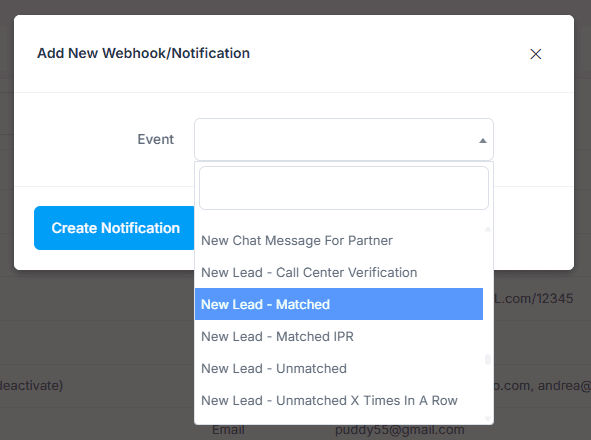
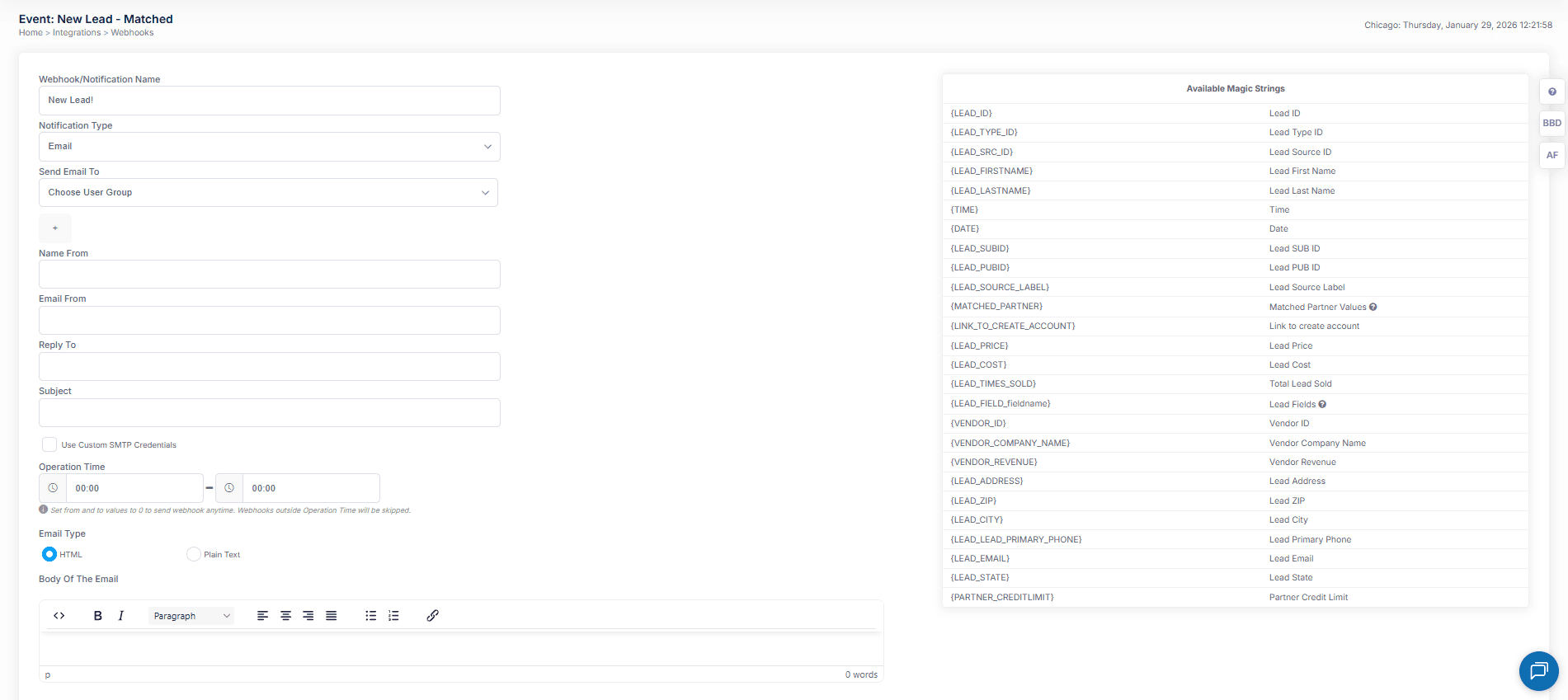
Build Your Webhook/Notification
After selecting your event, choose a notification type through which to send the notification. While the email option will deliver a traditional notification email built to your specifications, the remaining options give you the flexibility to send the notification as a post or FTP. Once you select your notification type, fill in the appropriate values for each of the fields that populate. For each notification type you also have the option to utilize magic strings, which will populate the corresponding value once the notification is sent. Once your notification is built, click Save Changes.
Once a new notification has been saved, you will notice it is listed in red. This means the notification is disabled. Once you are ready to enable a notification, simply click the red button. Before you enable the notification, however, you may want to use some of the tools below.
Tools
Once your Webhook/Notification is created, you will see a brief summary as well as a few tools associated with that specific Webhook/Notification.
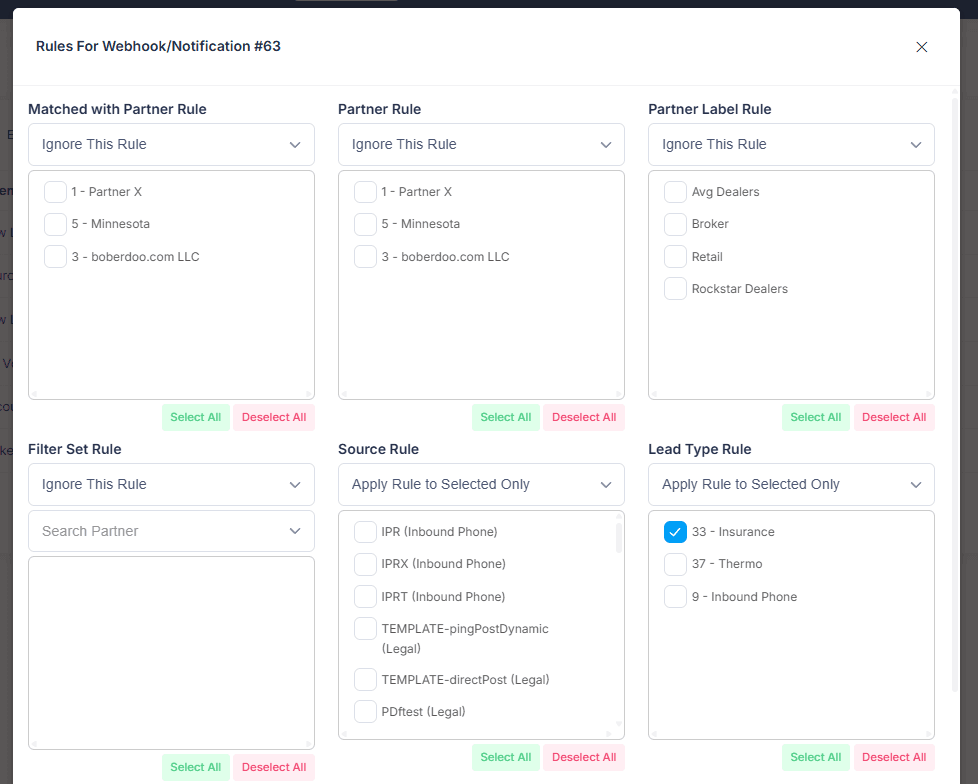
Rules
Most notifications come with the option to add rules. These rules allow you to drill down and customize each notification based on lead type, source and partner options. For example, you create a notification for the event "New Lead – Matched." You create the notification and choose to send an email to the matched lead that includes the corresponding partner information. You can create as many Notifications/Webhooks as you would like for the same event and associate different rules with each.
Copy Notification
You can copy (or duplicate) any notification/webhook. Simply select the blue copy button associated with your selected notification and the webhook builder will populate pre-filled with the settings from the copied notification. Make your desired changes and click Save Changes.
Edit Notification
Modify existing notification settings by clicking the edit button.
Enable/Disable Notification
Toggle notifications on or off as needed. Disabled notifications are displayed in red.
Need Help With Webhooks?
Our support team can help you configure webhooks and notifications for your specific use case.