
How To Set Up Your SMTP
Boost your email campaigns with boberdoo SMTP. Achieve seamless email delivery, better tracking, and improved open rates with powerful SMTP services.
Set Up With Gmail
Prerequisites
You'll need access to a Google Workspace/Gmail account that you can log into, and admin access to your boberdoo system.
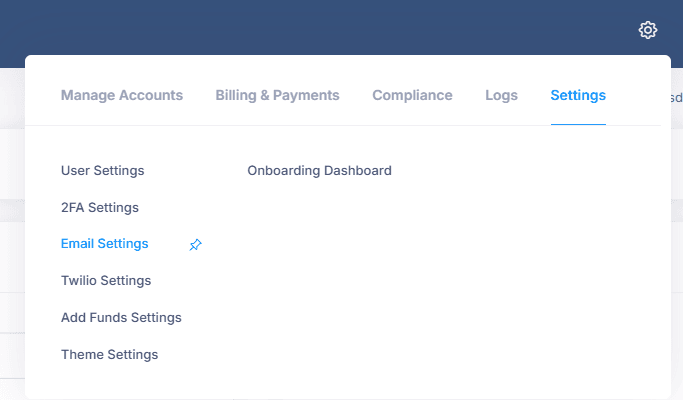
Step 1: Navigate to Email Settings
Inside your boberdoo system, go to Settings > Email Settings.
Step 2: Switch to Gmail Mode
Click the 'Gmail' button instead of 'SMTP.' This switches the email sending method from manual SMTP configuration to Google's authorization flow.
Step 3: Set Your 'From' Email Address
In the 'System Owner Email Address / From Email' field, enter the Gmail or Google Workspace email address you want emails to appear as coming from. This can be any address within your workspace that you're able to log into — it doesn't have to be a specific owner account.
Step 4: Click Update
Click the Update button to save your changes.
Step 5: Authorize boberdoo to Send Emails
Click the blue 'Authorize Lead System To Send Emails' button at the top of the page. A popup will appear prompting you to sign into Gmail — log in with the same email address you entered in Step 3, and make sure to allow all requested permissions.
Step 6: Test and Troubleshoot
Send a test email. If you receive a 403 Forbidden / 'insufficient authentication scopes' error, it likely means something got stuck during the authorization process. To fix it, return to Email Settings, revoke the authorization, and click the blue Authorize button again to go through the Gmail login and permissions flow one more time.
Once complete, all emails sent from your boberdoo system will appear as coming from the Gmail address you configured.
Do you use GoDaddy's SMTP in boberdoo?
The Problem
boberdoo connects to GoDaddy's email server using their supplied SMTP email connection information. boberdoo passes the email to their server, and GoDaddy sends the email. When companies utilize GoDaddy's email service, some companies may receive a blocking error stating a sending limit has been exceeded.
System.Net.Mail.SmtpException: Mailbox unavailable. The server response was: User _____ has exceeded its 24-hour sending limit. Messages to x recipients out of x allowed have been sent. The relay quota will reset in x.x hours.
Unfortunately, this limitation is not something boberdoo can work around or resolve. This is a limitation put into place by GoDaddy. There is some previous documentation of other GoDaddy email users having similar experiences with email limitations.
Recommendations
1. Contact GoDaddy Support. Please convey that your company uses SMTP to connect your boberdoo system to GoDaddy's email service.
2. Consider a different email provider. Unfortunately, many of our customers have not succeeded in GoDaddy's Support Team resolving this issue. Our recommendation is to consider SendGrid. We have many customers utilizing this for their SMTP for business email services.
Why setting up your SMTP is important.
Setting up your SMTP in your boberdoo system with Gmail, SendInBlue or SendGrid allows you to send emails out, which is important for many reasons.
The delivery rate for emails that go through boberdoo have an improved delivery rate, as well as having a backup plan if the emails fail. If an email fails, your SMTP will respond with an error so that you can always handle any situation before it evolves into a problem.
When sending emails through boberdoo, all the emails are saved
Ready To Get Started?
Fill out the form below to schedule a demo with one of our lead distribution experts.